
The following guidance will help you prepare for your on-screen assessment with NEBOSH.
- Unit PSM1, NEBOSH HSE Certificate in Process Safety Management (90 minute assessment),
- Unit EAW1, NEBOSH Environmental Awareness at Work Qualification (30 minute assessment).
Preparing for your assessment
The following information is only applicable if you have been sent an assessment email from NEBOSH providing this web link.
Your assessment will be completed online and monitored remotely (proctored). To support the delivery, administration and monitoring of your assessment, NEBOSH uses secure technology provided by trusted third-party suppliers, including Talview and RM.
Preparing for your on-screen assessment requires a few checks before the day of your assessment. Most learners complete these steps without any difficulties. By taking a little time to prepare in advance, you can feel confident that your equipment, internet connection and assessment environment are ready.
Don't worry if you're not particularly technical – this page will help guide you through everything you need to do.
Before assessment day, make sure you have:
- A quiet place to complete your assessment,
- A laptop or desktop computer with a camera and microphone,
- A reliable internet connection,
- Relevant ID for identity checks (Government issued ID),
- Completed the system checks,
- Installed the Secure Browser,
- Reviewed the assessment guidance.
Stage 1: Prepare your assessment space
Preparing your assessment environment is an important part of your on-screen assessment.
A suitable set-up will help you complete your assessment without interruption and in line with NEBOSH requirements:
- You must be in a quiet, private room, free from interruptions
- You must be alone for the full duration of your assessment
- Your workspace must have a clear desk, with only permitted materials visible
- Your face must be clearly visible on camera (ensure good lighting)
- You must have a stable internet connection throughout
- You will be asked to use your camera to show your desk and surrounding workspace as part of the assessment onboarding process
If these requirements are not met, your assessment may not be able to proceed as expected.
In addition, to help you perform at your best, we also recommend that your environment:
- Includes a comfortable desk and chair
- Provides enough space for any permitted resources
- Has a comfortable temperature
Watch this video:
Assessment Rules - before your assessment, please watch our on-screen assessment rules video so you understand what is expected on the day.
Stage 2: Prepare your computer
To complete your assessment, you will need:
- A desktop or laptop computer
- A working camera and microphone
- Stable internet access which the meets the recommended values as per Stage 3, Step 3
- The ability to install the required assessment browser/software
Planning to use a work desktop or laptop computer?
Many work computers are managed by employers and have security settings, restrictions, or monitoring software that can interfere with the assessment platform or prevent required software from being installed and used correctly.
For example, work devices may:
- block software downloads or installations
- restrict access to certain websites, webcams, microphones, or screen-sharing features
These restrictions can cause technical issues before or during your assessment and may prevent you from being able to start or complete it successfully.
Where possible, we strongly recommend using a personal desktop or laptop computer, as you are less likely to encounter these restrictions.
If you need to use a work desktop or laptop computer, please contact your IT team well in advance of your assessment. Provide them with the technical requirements (found in the system requirements section below) and ask them to confirm that all required software, permissions, and device features can be used on your computer for the duration of the assessment.
Stage 3: Complete your technical checks
Before your assessment, you must complete the following checks using the desktop or laptop computer and location you plan to use on assessment day. Completing these checks in advance helps confirm that your equipment, internet connection and assessment environment are ready, reducing the risk of technical issues during your assessment.
Step 1: Check your desktop or laptop computer requirements
Make sure the computer you plan to use meets the minimum technical requirements.
We have provided the system requirements for reference. The System Readiness Check below will confirm whether your desktop or laptop computer meets these system requirements and is compatible with the assessment platform.
System requirements
| Technology | |
| Browser | Talview Secure Browser (test taken using this browser) Required to download the Talview Secure Browser:
|
| RAM | 4GB |
| Graphics | Minimum of 512MB of graphics memory (internal/external) |
| Multimedia Support |
|
| Internet connection | Wired ethernet preferred, wi-fi acceptable if stable. Do not connect using a VPN or mobile hotspot. Minimum per user:
Recommended per user:
|
| Processor | At least 4 physical CPU cores (or equivalent), base clock ≥ 1.1 GHz. Intel Core i3 (or better) or Apple silicon M1 (or better). |
| Operating system |
|
Supported devices
You are permitted to take your assessment on the following devices:
- Windows laptop or desktop (Windows 11 (version 24H2 or later)
- MacBook or iMac (macOS 26 or later)
Please note:
- You are not permitted to take the assessment on a tablet, mobile phone or Chromebook.
- If you are using a desktop computer, you may need an external camera and microphone.
- If you are using a headset with a microphone, place it on the desk and do not wear it.
- Wireless and mobile microphones are not recommended.
Additional Technical Considerations
If using corporate or managed devices, you may need IT assistance for admin rights, firewall permissions, or proxy whitelisting.
Step 2: Run the system readiness check
Complete the System Readiness Check on:
- The desktop or laptop computer you will use for your assessment
- The location where you will sit your assessment
This confirms that your equipment is compatible with the assessment platform.
Estimated time: 30 seconds
Step 3: Check your internet connection
Before your assessment, you must check that your internet connection is suitable using the speed test below.
The speed test tool will display its own minimum or recommended values. Please ignore these and use the NEBOSH requirements below, as these are based on the needs of your assessment.
| Metric |
Minimum (required) |
Recommended (best experience) |
| Download speed |
1.2 Mbps |
5 Mbps |
| Upload speed |
1.2 Mbps |
5 Mbps |
| Ping (latency) |
Less than 150 Ms |
Less than 80 Ms |
| Jitter |
Less than 30 Ms |
Less than 20 Ms |
Estimated time: 30 seconds
If your internet speed test does not meet the minimum requirements your connection may not be suitable for the assessment. You should:
- Move to a different location, or
- Use a more stable connection (e.g. wired or stronger Wi-Fi),
- Then run the test again.
Step 4: Download the secure browser
You must download and install the Talview Secure Browser on the device you will use for your assessment. This browser is required to access and complete your NEBOSH on-screen assessment.
Estimated time: 5 minutes
Important: If you already have the Talview Secure Browser installed on your device, please uninstall it before downloading and installing the latest version using the appropriate button below.
To uninstall the Talview Secure Browser, please follow the instructions in Step 3 of the Talview guidance: Steps to Download and Use the Secure Browser : Support Centre.
Stage 4: Get familiar with the platform
Understanding the assessment platform before the day can help you feel more confident.
We recommend:
- Watching the guidance videos
- Reviewing the content on this webpage
- Ensure you know how to access technical support if required
- Understanding what to expect during the onboarding process
Watch: Accessing your on-screen assessment with NEBOSH
This video explains:
- How to access your assessment
- Hardware tests required
- Identity verification and room scans
Watch: Completing your on-screen assessment with NEBOSH
This video explains:
- The important information presented at the start of your assessment
- Assessment navigation and timeframes
- How to answer questions
- Flagging questions for review
- Reviewing your answers
- How to use the summary section at the end of your assessment to review any unanswered or flagged questions
- How to submit your answers and log off
Watch: How to use accessibility features
This video explains:
- How to access the accessibility menu
- Available accessibility options and adjustments
- How to customise your assessment experience
- When accessibility settings can be used during an assessment
On the day of your assessment
When it's time for your assessment:
- Open the assessment link from your assessment email which will be sent to you eight working days before the assessment.
- Launch the Talview Secure Browser
- If you have already downloaded the Talview Secure Browser:
- click the assessment link in your email,
- you will be taken to the assessment launch page,
- click Open button this will launch the Secure Browser.
Please note: launching the Talview Secure Browser will close down ALL applications on your computer. - If you have not downloaded the Talview Secure Browser:
- click the assessment link in your email,
- You will be taken to the assessment launch page, where you can download the Secure Browser,
- For further guidance, see Step 4: Download the Secure Browser. - Download the Secure Browser Complete the onboarding and photo ID identity checks (Government issued ID)
- Follow the onscreen instructions
- Complete your assessment
- Submit your assessment as instructed and wait for the confirmation message that your assessment is completed
- Do not close the secure browser until the confirmation message is displayed
Take your time and read each screen carefully. The assessment platform will guide you through every stage of the process.
Help is available before and during your assessment.
Before your assessment:
- Refer to the learner guidance and technical information provided on this page.
- Use the NEBOSH support route provided in your assessment email if you have any assessment-related queries.
During your assessment:
- Follow any on-screen guidance provided.
- Remain calm and allow the system time to respond if you experience a delay.
- For any technical issues, use the live chat support feature within the RM assessment platform by selecting the support icon. RM's live chat support team can assist with technical issues such as accessing the assessment, problems with the secure browser, connectivity issues, or other platform-related queries.
- For assessment-related queries, such as questions about your assessment, reasonable adjustments, or NEBOSH policies and procedures, contact NEBOSH using the support route provided in your assessment email.
- If you need to contact NEBOSH by telephone, you must first exit the assessment. Closing the Secure Browser will close your assessment session, but any work completed up to that point will be saved. Once you have exited the assessment and are no longer in exam conditions, you may contact NEBOSH if required.
Accessing live support from RM

This is the RM support icon that will be visible on each page of your assessment screen. To access support at any time, please click this Icon. This will launch the RM support portal in a new window.
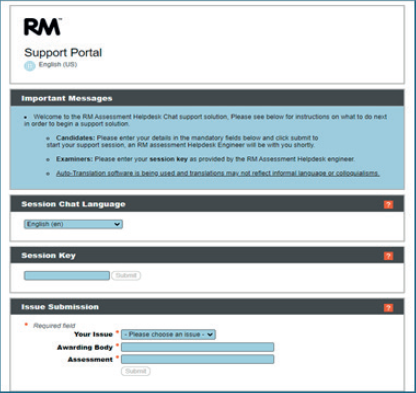
This is the RM Support Portal, where you can contact support, and in real time they will assist with your enquiry. You only need to complete the three fields under Issue Submission. Below is an example:
Your Issue: Use drop down to provide issue summary
Awarding Body: NEBOSH
Assessment: EAW1
We have also produced a short guidance video showing how to access the RM Support Portal during your assessment:
Frequently Asked Questions
Do I need to be an IT expert to complete the assessment?
No. If you can use email and browse the internet, you should already have the skills needed to access and complete your assessment.
Can I use a work laptop?
Yes, but some work desktop or laptop computer have security restrictions that may affect access to the assessment platform. If possible, use a personal desktop or laptop computer or speak to your IT team before the assessment.
Can I check everything before assessment day?
Yes. We strongly recommend completing all system checks, downloading the Secure Browser and reviewing the guidance before the assessment date.
What should I do if I have technical difficulties during the assessment?
Use the support option available within the assessment platform and follow the instructions provided on screen.
How long is my Unit PSM1 - NEBOSH HSE Certificate in Process Safety Management assessment?
The online assessment for this qualification lasts 90 minutes. A timer will be visible throughout the assessment, allowing you to keep track of the time remaining.
How long is my Unit EAW1 - NEBOSH Environmental Awareness at Work Qualification?
The online assessment for this qualification lasts 30 minutes. A timer will be visible throughout the assessment, allowing you to keep track of the time remaining.
Before assessment day, make sure you have completed all of the following:
- Prepared a quiet assessment space
- Checked your equipment
- Completed the System Readiness Check
- Completed the Internet Speed Test
- Installed the Secure Browser
- Watched the guidance videos
- Reviewed the assessment rules
- Have your photo ID ready before opening the assessment
You're ready
If you've completed the preparation steps on this page, you should be ready for your assessment.
Completing these simple checks now will help you focus on what matters most on the day – demonstrating your knowledge and achieving your qualification.